







If you want to protect your privacy, reduce screen time, or leave social media, learning how to delete Facebook account permanently can help you take control of your digital life. Facebook stores personal information, photos, videos, posts, comments, and other account activity. Understanding the deletion process before getting started can help you avoid mistakes and make a confident decision about your online presence.
This guide explains how to delete Facebook account permanently using a mobile device or computer. You will also learn how to save your personal information, recover access if you forget your password, and understand the difference between deletion and deactivation. Following these steps can help you complete the process smoothly while protecting important files and maintaining access to other online services.
What to Know Before Deleting Your Facebook Account
Before you delete your Facebook account, consider the information and services connected to your profile. Permanent deletion can make your photos, videos, posts, and other content inaccessible. You may also lose access to Facebook Messenger and websites where you use Facebook Login. Reviewing these connections beforehand can prevent unexpected problems, particularly if Facebook is your primary way of signing in to other platforms.
You should also review any Facebook Pages, groups, and business activities associated with your profile. If you are the only administrator of a Page, arrange appropriate access for another trusted administrator before proceeding. Download a copy of your important information, check your connected Meta accounts, and update alternative login methods. These preparations can make deleting your account easier and help you avoid losing information you still need.
How to Delete Facebook Account Permanently on Mobile
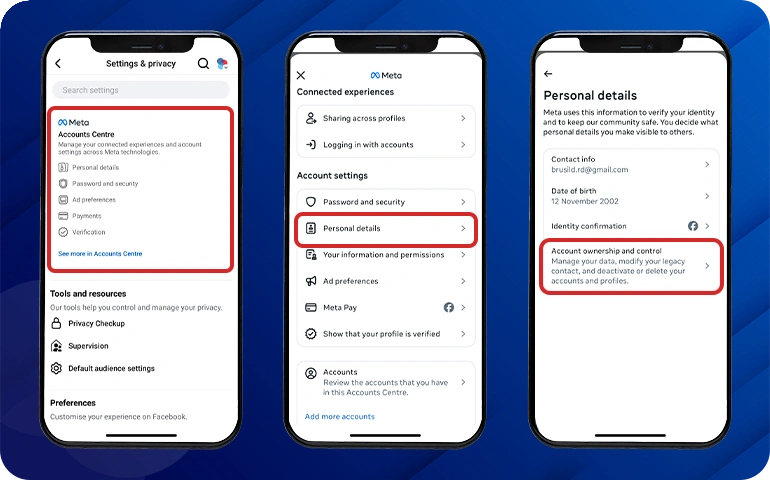
Learning how to delete Facebook account permanently through the mobile app is straightforward once you know where to find the correct settings. Facebook generally provides the deletion option through Accounts Center, although menu names and their placement may change with app updates. Begin by opening the Facebook app and signing in to the account you want to remove. Confirm that you have selected the correct profile before continuing.
Follow these steps to submit your deletion request:
- Open the Facebook app on your phone.
- Tap Menu and select Settings & privacy.
- Open Settings and access Accounts Center.
- Select Personal details.
- Tap Account ownership and control.
- Choose Deactivation or deletion.
- Select the Facebook profile you want to remove.
- Choose Delete account and tap Continue.
- Follow the on-screen instructions to confirm your decision.
Review every confirmation screen carefully before completing the request. Selecting Delete account begins the permanent deletion process, while Deactivate account is intended for temporary use. If you cannot find the option, update the Facebook app or try accessing your account through a mobile browser. The exact wording may differ slightly, but Accounts Center is the main place to look for deletion controls.
How to Delete Facebook Account on a Computer
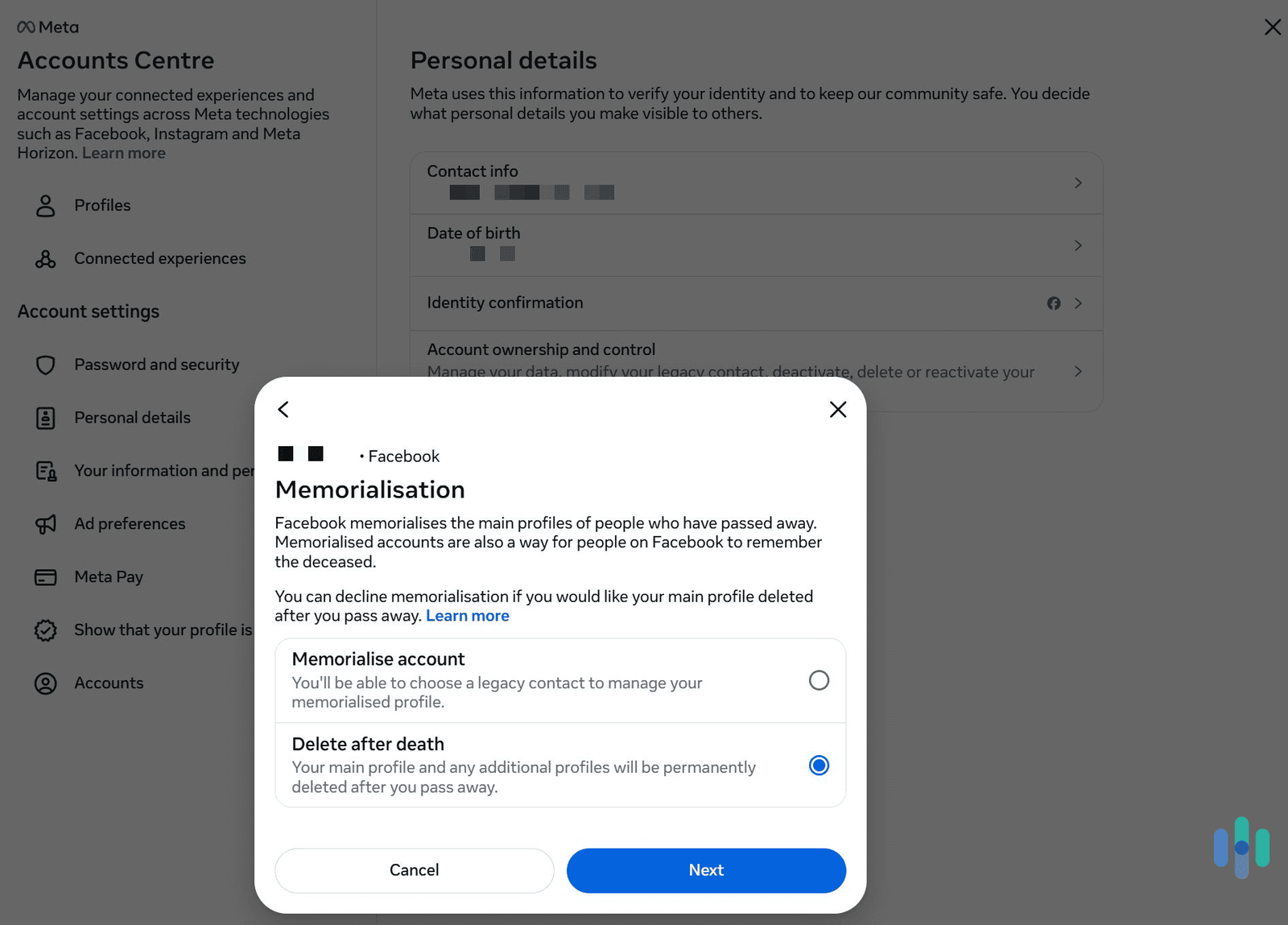
If you prefer using a desktop or laptop, you can delete your Facebook account through a web browser. This option is helpful when you want to review settings on a larger screen or find the mobile interface difficult to navigate. Open Facebook, sign in, click your profile picture, and select Settings & privacy followed by Settings. Look for Accounts Center in the available settings.
Inside Accounts Center, open Personal details and select Account ownership and control. Choose Deactivation or deletion, select the relevant Facebook profile, and click Delete account. Continue through the confirmation screens and provide your password or any requested verification details. Check that you have selected the correct profile before submitting your request. If the interface looks different, consult Facebook’s official Help Center for the latest instructions.
How to Delete Facebook Account Without a Password
If you have forgotten your password, you will generally need to recover access before you can permanently delete your Facebook account. Facebook uses security checks to help prevent unauthorized people from removing someone else’s profile. Start by visiting Facebook’s official account recovery page and entering the email address or phone number associated with your account. Follow the available instructions to verify your identity and reset your password.
After regaining access, return to Settings and open Accounts Center to complete the deletion process. If you cannot access your registered email address or phone number, follow the recovery options Facebook provides for your situation. Avoid websites or individuals promising instant account deletion without verification, as they may be scams. Never share your password, login codes, or sensitive account information with unofficial services claiming they can remove your profile.
How to Delete Facebook Account Without Logging In
If you cannot log in, first identify whether the problem involves a forgotten password, a locked account, or unauthorized access. Each situation may require a different recovery process before you can submit a deletion request. Start with Facebook’s official account recovery options and follow the instructions provided for your particular problem. Recovering access is generally the most practical way to regain control of the account.
For a compromised account, use Facebook’s official hacked-account recovery process. If you no longer control the registered email address or phone number, follow the identity verification options available to you. Reporting an account does not automatically guarantee deletion, and unofficial services cannot be trusted simply because they promise quick results. Protect your personal information and avoid sharing verification codes with anyone who claims they can delete your account for you.
How to Delete Facebook Account on Android and iPhone
The process for deleting a Facebook account on Android and iPhone is generally similar because both versions use Accounts Center. Open the Facebook app, navigate to Menu, and access Settings & privacy followed by Settings. From there, open Accounts Center and select Personal details. Choose Account ownership and control, then Deactivation or deletion, and select the profile you want to remove.
Tap Delete account and follow the confirmation instructions displayed on your device. If the settings appear in a different location, update the app or try Facebook through your mobile browser. Remember that uninstalling the Facebook app only removes it from your phone; it does not delete your account or stored information. You must submit a deletion request through Facebook’s account settings to begin the permanent removal process.
Facebook Account Deletion vs. Deactivation
Permanent deletion and temporary deactivation serve different purposes, so choosing the correct option is important. Deletion is intended for people who want to leave Facebook and remove their profiles. It begins a process that removes account content according to Meta’s policies. Once the applicable cancellation period ends, you generally cannot recover the account, making it important to save personal information before confirming your decision.
Deactivation is a temporary alternative for people who want a break without permanently removing their accounts. It generally hides your profile from other people while preserving information for possible future use. Depending on your settings and choices, you may still be able to use Messenger. If you are uncertain about leaving Facebook forever, deactivation gives you more flexibility while you decide whether you want to return to the platform.
How to Download Your Facebook Data Before Deletion
Downloading your Facebook information before deleting your account can help preserve important memories and personal records. Your profile may contain family photographs, videos, conversations, posts, and other information you do not want to lose. Once deletion becomes permanent, retrieving that content may no longer be possible. Creating a backup beforehand is especially helpful if you have used Facebook for many years and accumulated a substantial amount of personal content.
To download your information, open Facebook Settings and access Accounts Center. Look for the option to access or download your information, then follow the prompts to choose the data you want to save. Depending on the available settings, you may be able to select a date range, file format, and media quality. Request the download, save the prepared files securely, and verify that you have the information you need before continuing.
What Happens After You Delete Your Facebook Account?
After you request permanent deletion, Facebook begins processing the removal of your account and associated content. Meta generally provides a 30-day period during which you can cancel the request, although applicable rules may vary by region or circumstances. If you do not cancel within the permitted period, the deletion generally becomes permanent. Therefore, review your decision carefully before confirming the request.
Meta states that removing all your information from its systems can take up to 90 days from the beginning of the deletion process. Some information, such as messages you previously sent, may remain visible to other people in their inboxes. You may also lose access to websites that use Facebook Login. Before deleting your account, update those services and establish alternative sign-in methods wherever necessary.
How to Cancel Facebook Account Deletion
If you change your mind after requesting deletion, you may be able to cancel the process during the applicable cancellation period. Meta generally allows users to cancel within 30 days, although regional rules or account circumstances may differ. If you are still within the permitted period, try logging in to your account and look for an option to cancel the deletion request.
Follow the instructions displayed on the screen to confirm that you want to keep your account. If cancellation succeeds, your account should remain available rather than continuing toward permanent deletion. However, once the cancellation period has expired and deletion becomes permanent, restoring the account is generally not possible. If you are unsure about leaving Facebook completely, consider temporary deactivation before making a final decision.
Common Facebook Account Deletion Problems and Solutions
Sometimes users cannot find the deletion option because Facebook updates its interface or changes the placement of settings. Start by checking Accounts Center under Settings, then open Personal details and Account ownership and control. If the option is unavailable in the app, try using a desktop browser or updating the application. Make sure you are signed in to the correct account before submitting your request.
Other problems may include a rejected password, a locked account, or difficulty accessing a registered email address. Recover your account through Facebook’s official recovery process before trying again. If your account has been hacked, use the official compromised-account recovery procedure to regain control. For persistent errors, consult the Facebook Help Center rather than relying on unofficial services. These steps can help you resolve common problems while keeping your personal information secure.
Conclusion
Learning how to delete Facebook account permanently can help you leave the platform with greater confidence and fewer unexpected problems. The main process involves opening Accounts Center, selecting Personal details, navigating to Account ownership and control, and choosing Deactivation or deletion. You can complete these steps through the Facebook mobile app or a web browser, depending on which device is most convenient for you.
Before submitting your request, download the information you want to keep, review connected applications, and check whether you manage any important Pages. Remember that permanent deletion differs from temporary deactivation and that the cancellation period is limited. By following the correct steps and reviewing each confirmation screen, you can make an informed decision about your Facebook account and digital privacy.
Frequently Asked Questions
How do I permanently delete my Facebook account?
Open Facebook Settings, access Accounts Center, and select Personal details, followed by Account ownership and control. Choose Deactivation or deletion, select your profile, and confirm Delete account.
Can I delete my Facebook account without a password?
You generally need to recover access to your account or complete Facebook’s available identity verification process before submitting a deletion request.
How long does Facebook account deletion take?
You can generally cancel deletion within 30 days. Meta states that removing all content from its systems may take up to 90 days.
Can I recover my Facebook account after deletion?
You may be able to cancel deletion during the applicable cancellation period. After the account is permanently deleted, recovery is generally unavailable.
Does deleting Facebook also delete Messenger?
Permanently deleting your Facebook account removes your access to Messenger associated with that account. Deactivation may offer different options.